






Designkit Free Background Remover Review: An Easy Way to Clean-Up Product Photos Without Photoshop
 Story by:
Technology Blog
Story by:
Technology Blog
Selling sneakers online? Or upload a watch to Instagram? The problem is the same: your product is good, but that cluttered desk or bedroom is not.
You could use Photoshop, but who wants to learn layers and masking just to sell a pair of shoes?
I tested Designkit’s free background remover using photos of sneakers, a watch, a wallet, and several electronic accessories to see how effectively it removes backgrounds while keeping the editing process simple and hassle-free.
Why a Clean Background Actually Matters for Your Gear
Your shoes may be brand new, but if they’re lying in the pile of your laundry, then there’s ga ood chance nobody will see the shoes. A messy background can make even a quality item look cheap, while a clean background makes your product really pop.
Such details make a difference when you are selling shoes on eBay or Facebook Marketplace, you are showing off your watch collection or posting the details of your EDC on Instagram.
No one wants to see your dirty laundry in the background.
And no, you don’t need Photoshop for this. Just upload your photo, remove the background, and get on with your day.
What is Designkit, exactly?
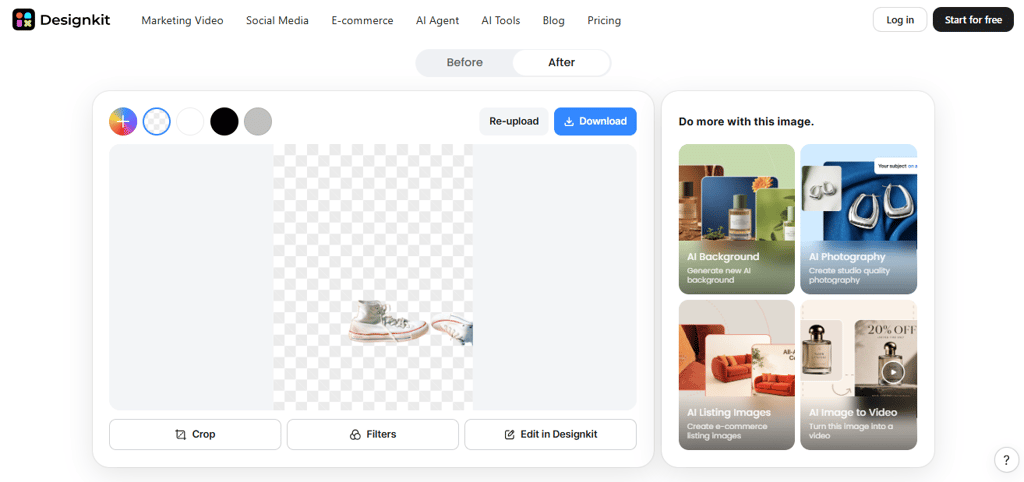
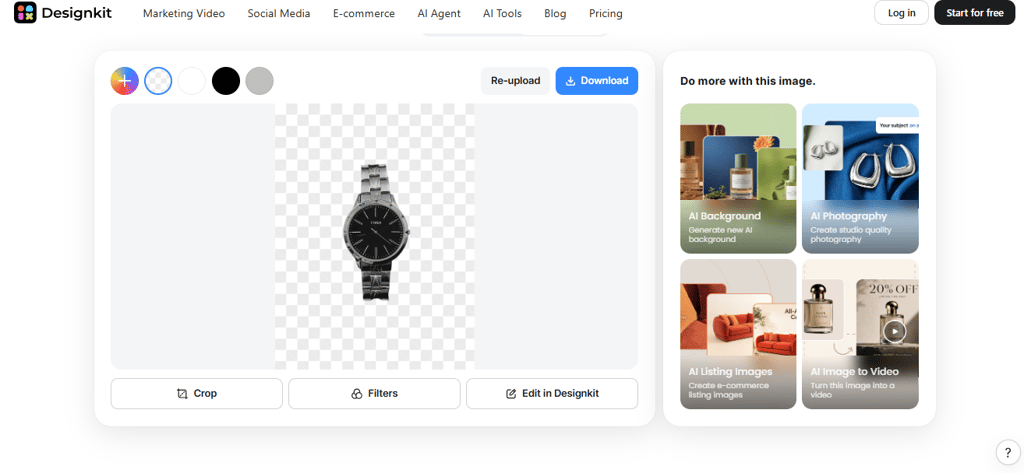
The free background remover by Designkit is a browser-based AI tool for cleaning up product photos without the need for Photoshop. Drop a photo; it’ll remove the background in seconds. It can handle product shots, portraits, style shots, animals, and logos, and lets you upload JPG, PNG, or WebP images.
Here’s what makes it useful for selling your gear online:
- One-click background removal: Cut out your product without manual tracing or masking.
- Batch processing: Edit as many as 15 photos in a single session by removing their backgrounds simultaneously.
- Free previews: Check your results before exporting.
- Background options: Keep the background transparent, use plain white, pick a solid color, or create a new scene.
- Free image downloads: Log in to save full resolution images, with a daily allowance of up to 100 free exports.
Testing It on 5 Things You’d Actually Want to Photograph
To evaluate Designkit’s performance across different product types, I tested it on five everyday items with varying shapes and intricate features, including sneaker laces and delicate watch links. The following examples show how each item looked before and after background removal.
A Pair of Sneakers on a Messy Floor
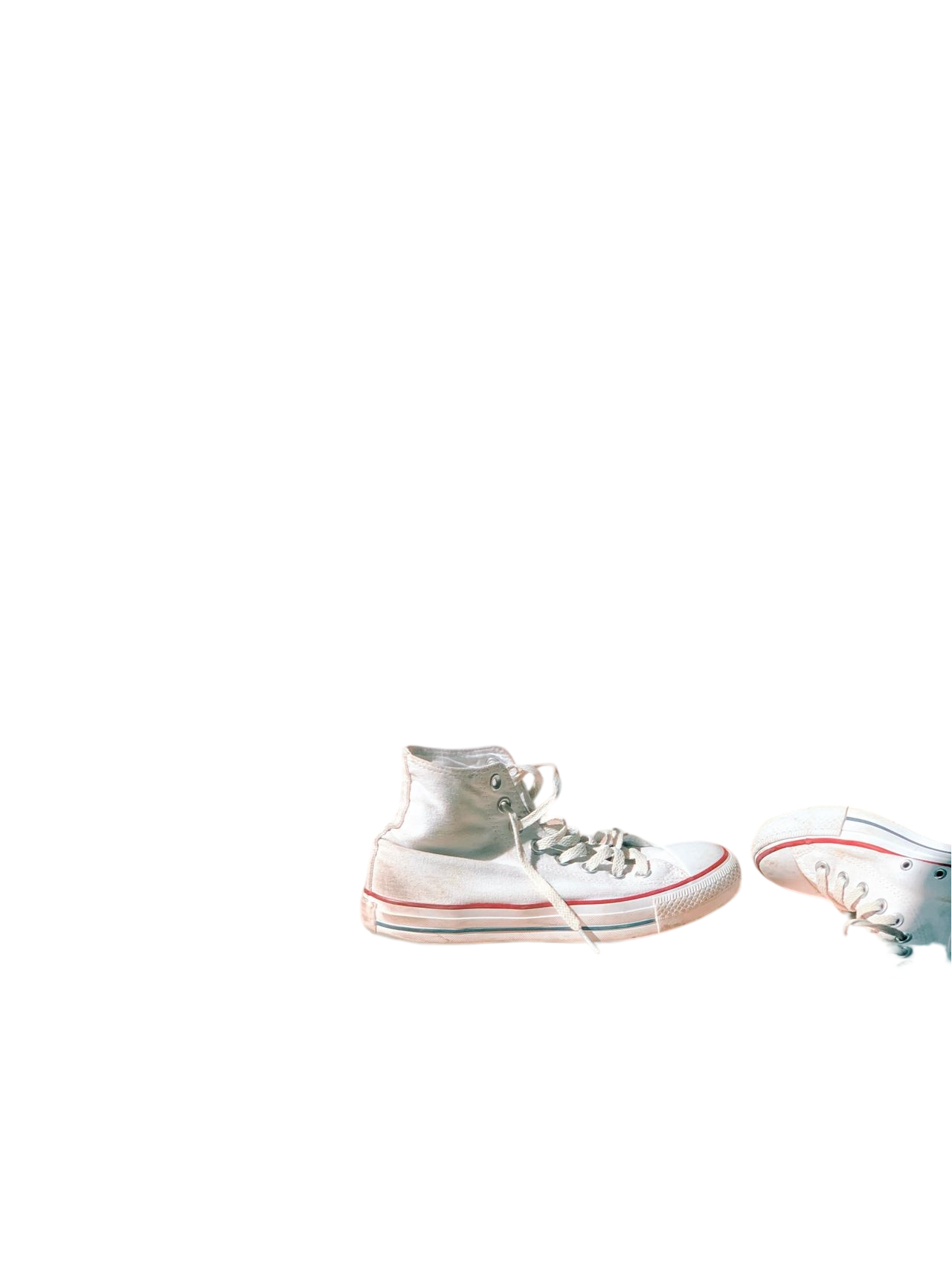
The original image shows sneakers surrounded by floor clutter, while the edited version isolates them against a plain white backdrop. What matters most is whether Designkit preserves fine details, such as the laces, stitching, and sole contours. After all, a polished image loses its value if parts of the shoe disappear during editing.

A Watch with a Metal Band
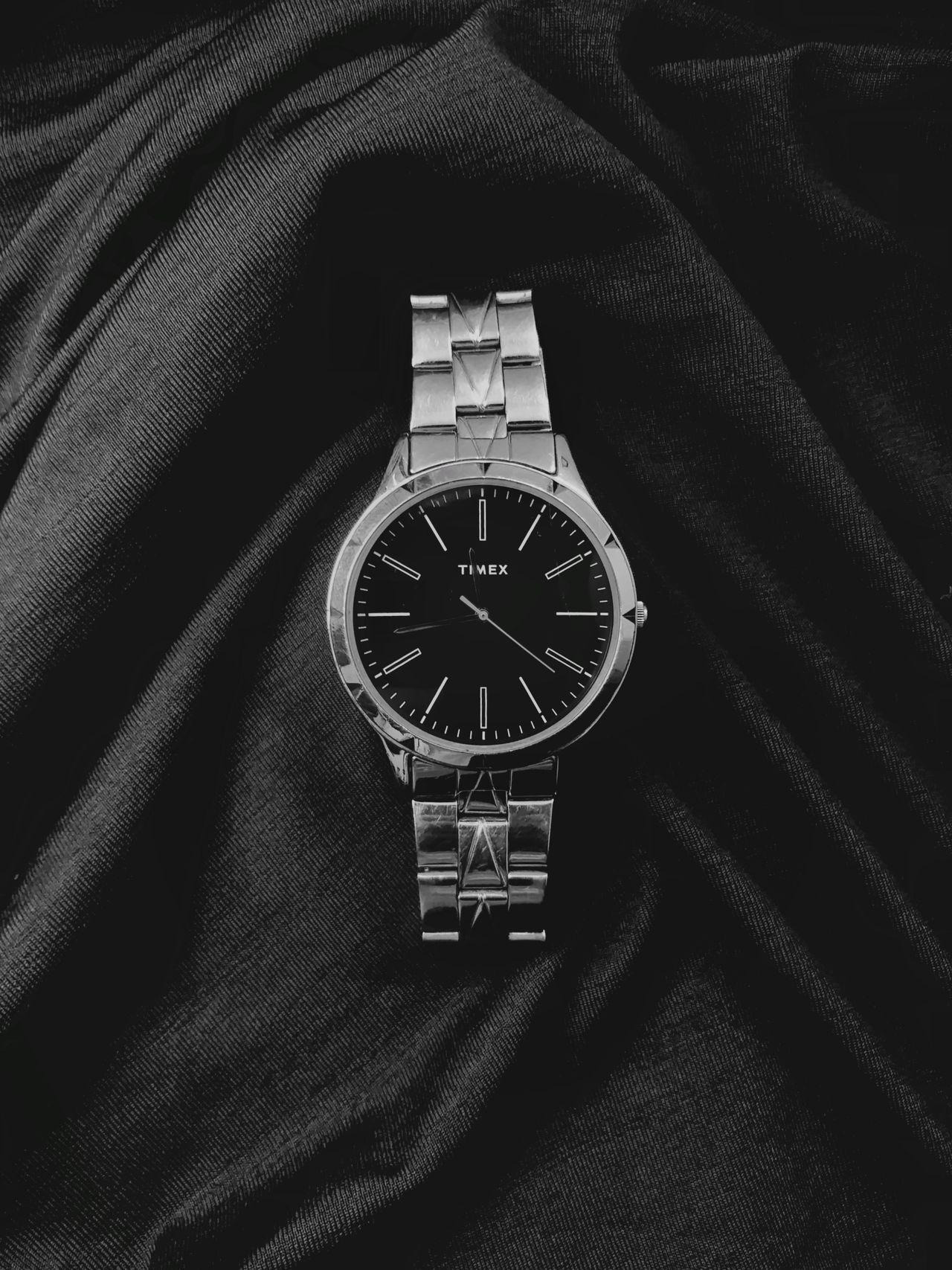
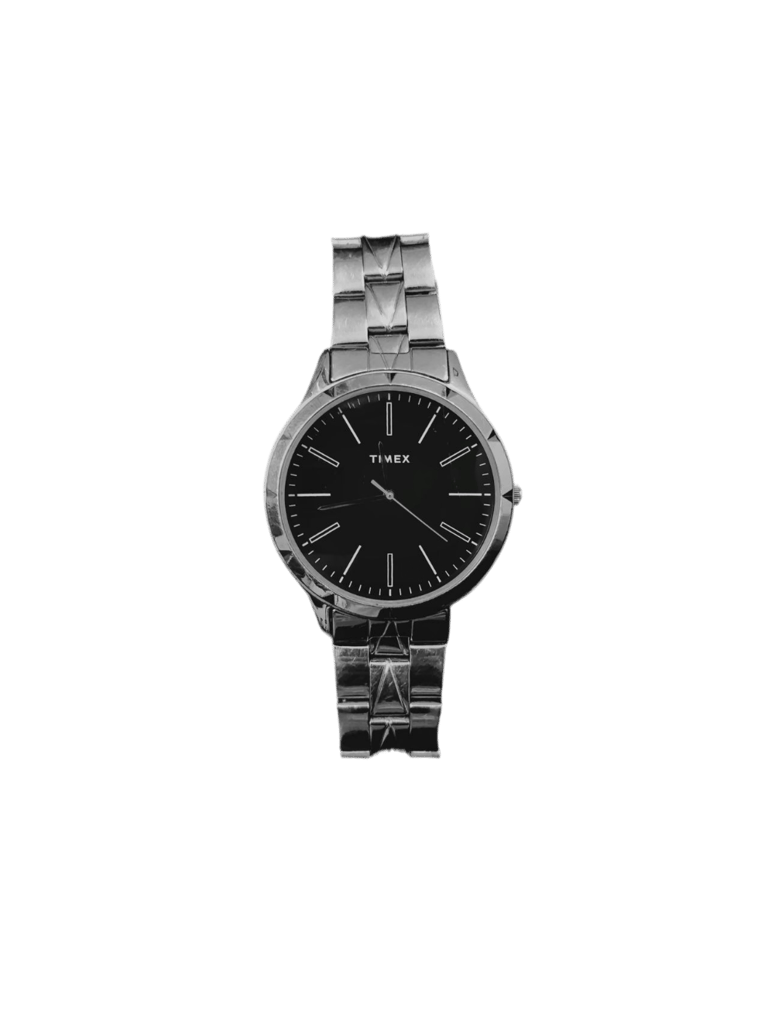
The watch definitely looks better without that busy background. But metal bands pose their own problem with small gaps and shiny links. Carefully examine your finished cutout to determine whether Designkit preserves the individual links or smushes the ends. Those minute details do become more important when you’re presenting a handsome watch!
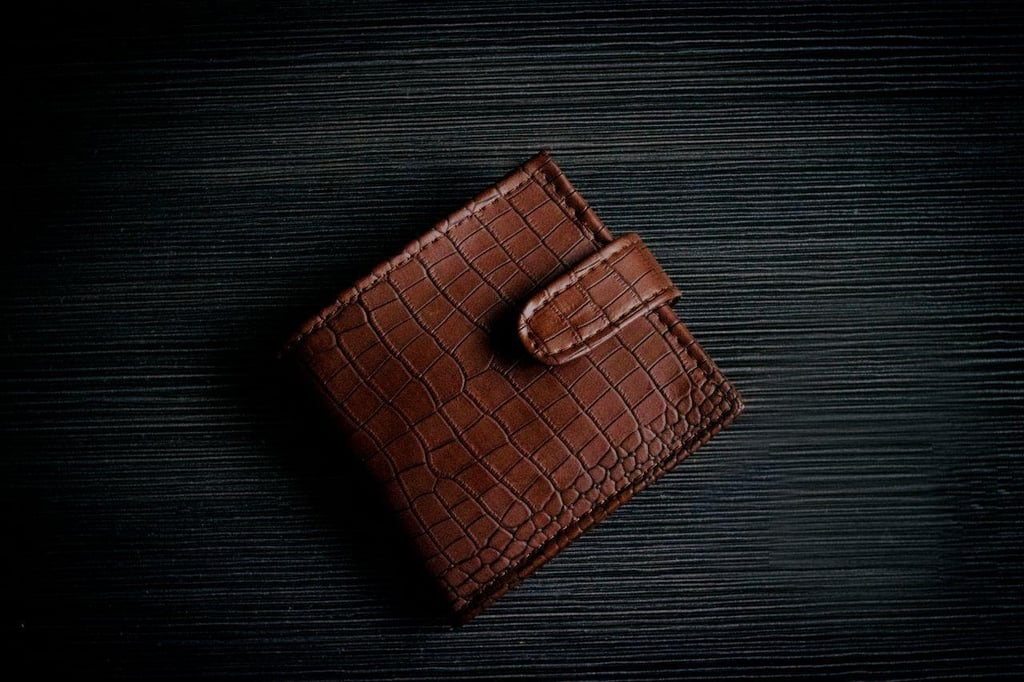
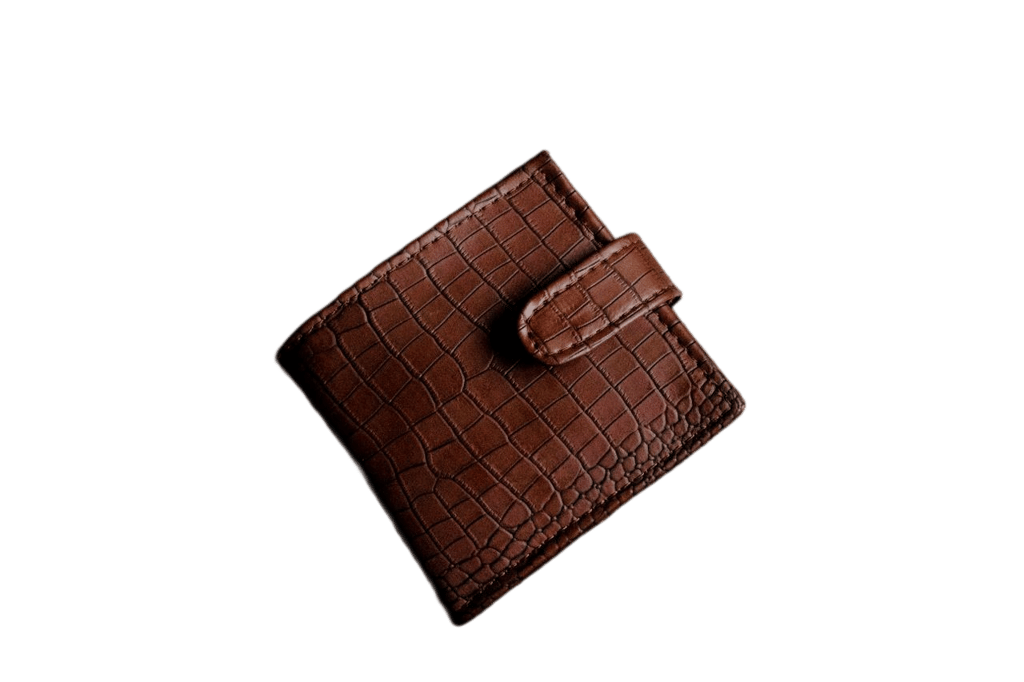
A Leather Wallet
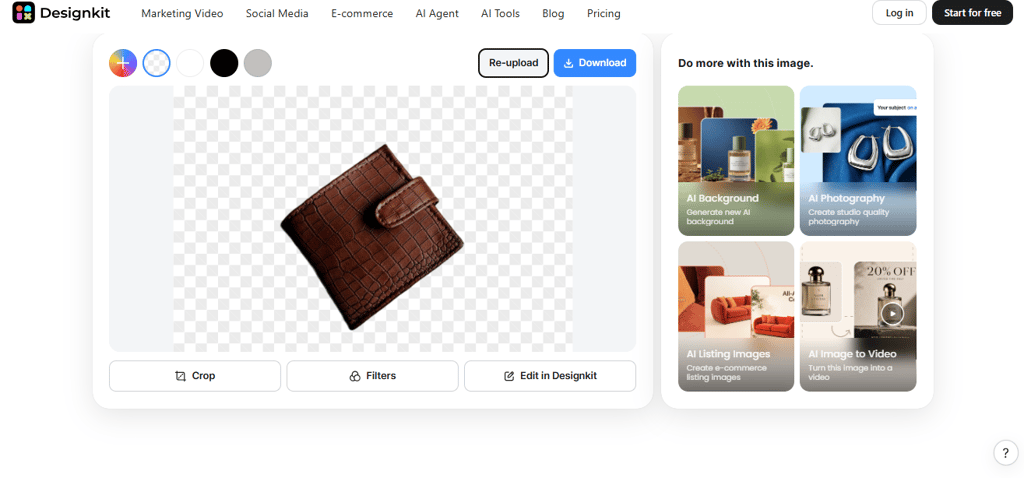
Removing the background gives the wallet a cleaner appearance, creating better contrast and drawing attention to the product itself. The stitching and overall shape remain easy to see, but preserving the natural leather grain and dark edges is the real challenge.
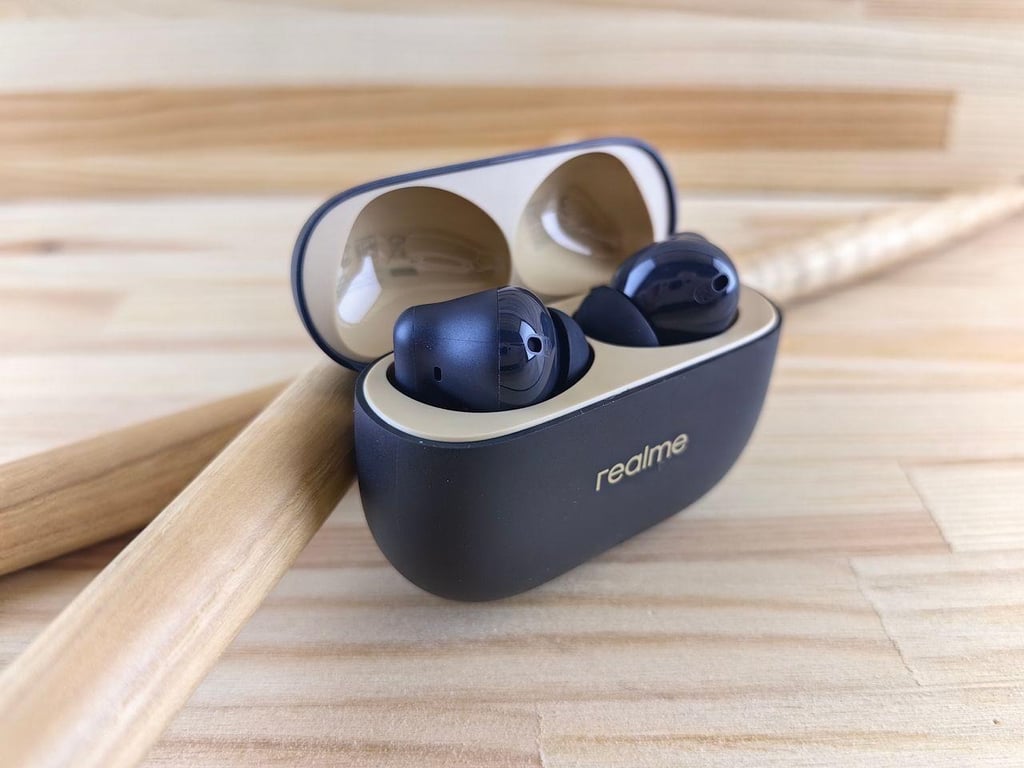
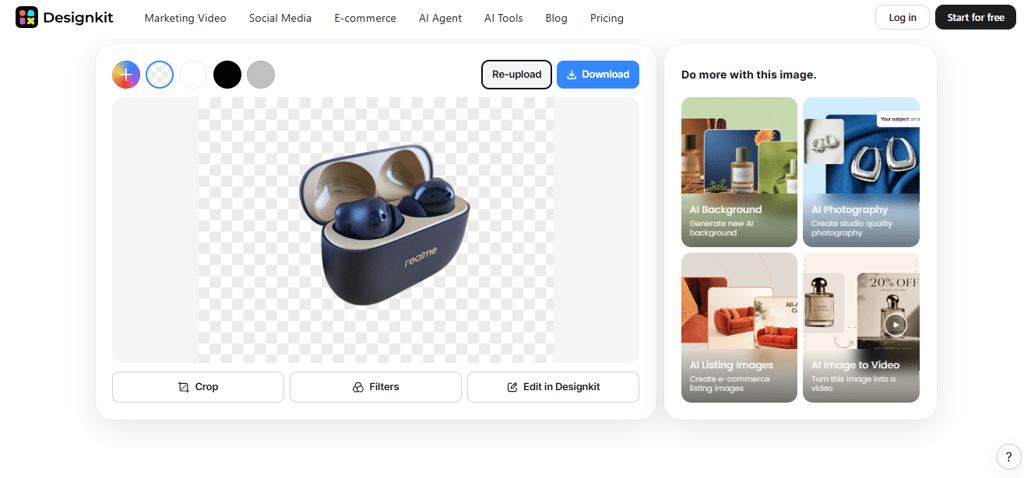
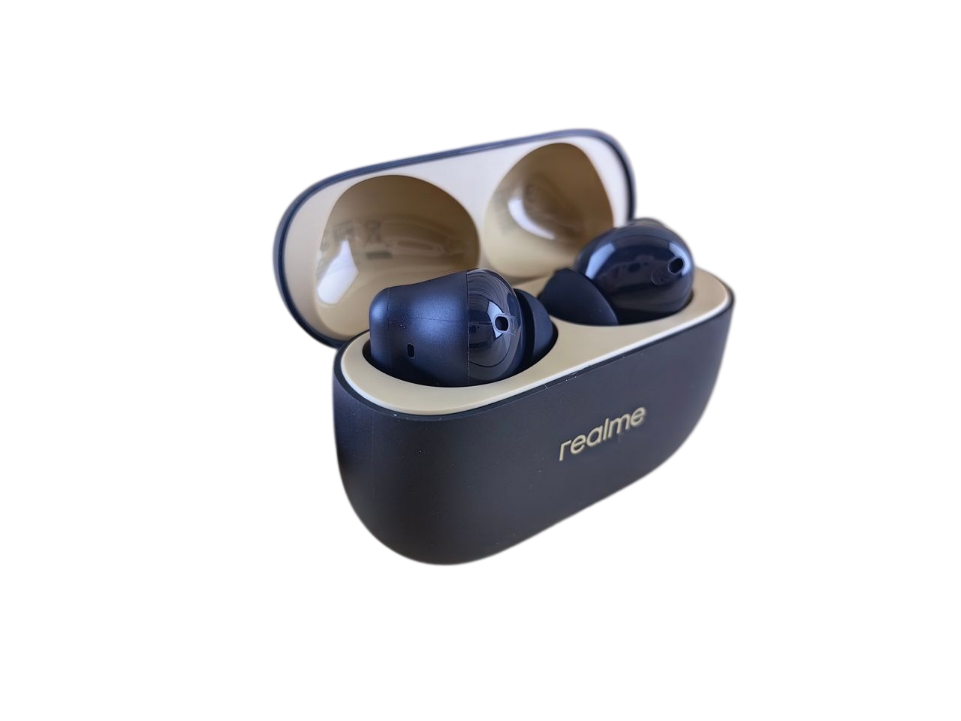
A Pair of Wireless Earbuds in the Case
Once the background’s removed, we’re left with the case and earbuds. Our biggest challenge is to maintain those tiny spaces between the case and the earbuds. The perfect cutout maintains the shape of those curved edges, rather than letting them all bleed into a weird-looking blob.
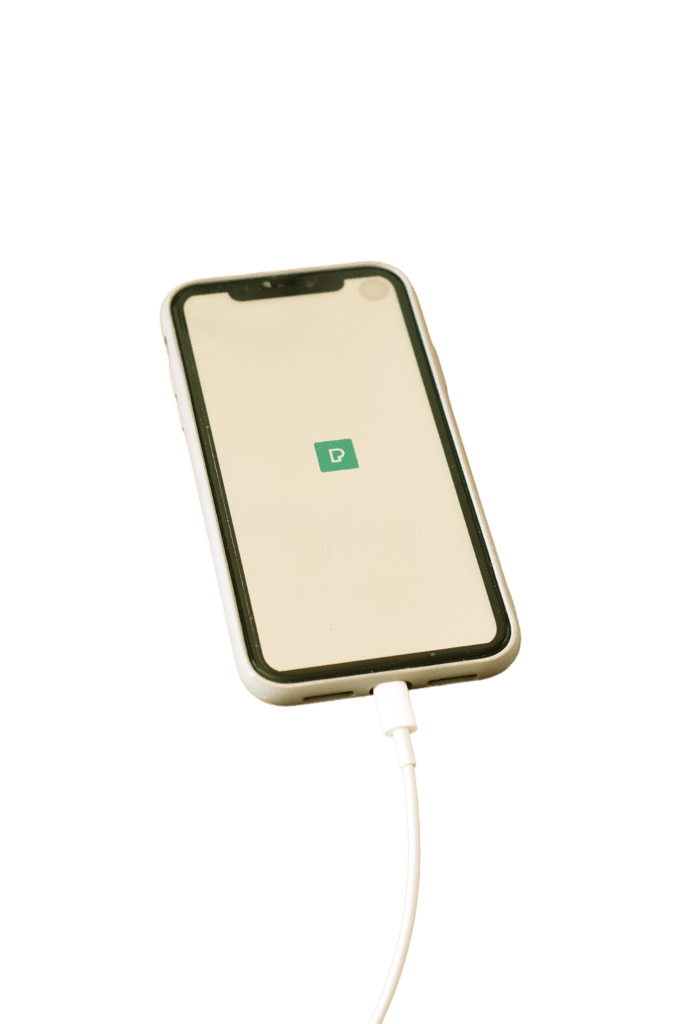
A Phone with a Charging Cable Attached
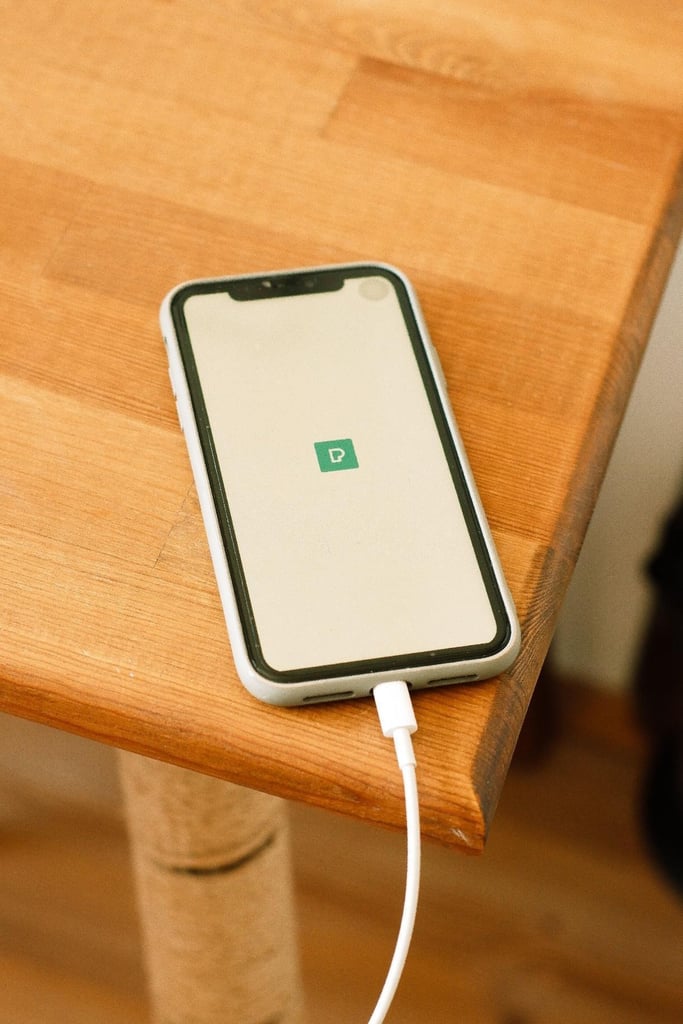
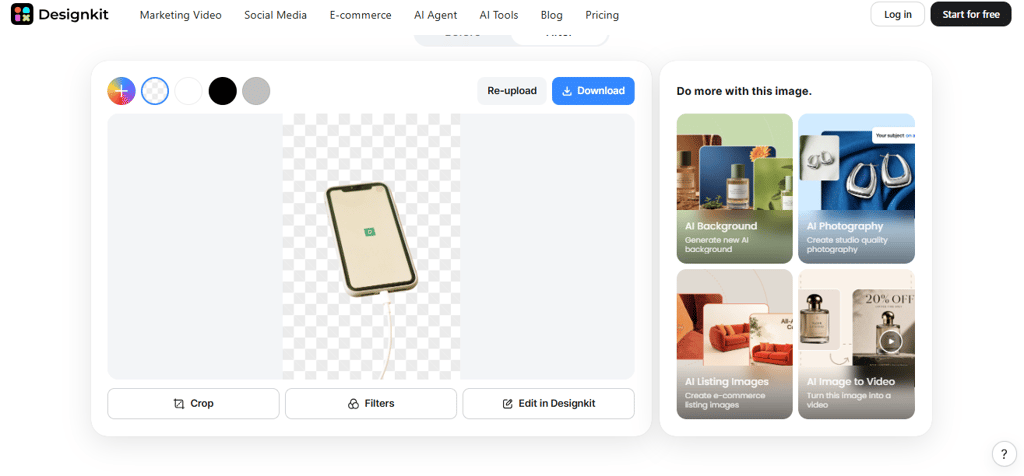
The phone itself looks cleaner without the background clutter, but the real challenge is the cable. With its narrow, flexible design, automated removal can easily cut off parts of the cable, especially near the ends. Make sure to inspect its entire length, paying particular attention to the connector and bends to ensure every detail remains intact.
How’d It Actually Do? Breaking Down the Results
The sneakers and the wallets were no challenge. Designkit’s free background remover perfectly removed the backgrounds without damaging the shape or edges of those objects. In the same vein, the watch performed unexpectedly well, with the small spaces between the links of its metal band clearly and cleanly captured.
No weird halos or missing bits. So far, so good.
EarPods were quite the test case. Those small spaces where the earbud is inserted into the ear and the case are quite difficult and here you should go full screen.
The phone and charging cable turned out pretty well, too, though the thinnest part of the cable had a slightly rough edge.
Free Tools and Features Included with Designkit
Designkit offers several useful features at no cost, making product photo editing more convenient.
- Daily export allowance: Download up to 100 edited images per day for your online listings and product photography needs.
- Batch editing: Remove backgrounds from as many as 15 images in a single operation.
- Watermark-free downloads: Export clean images without distracting branding or logos.
- Download All option: Save multiple edited photos together instead of downloading files individually.
- Multiple file formats: Export images in JPG, PNG, or WebP, with PNG available for transparent backgrounds.
Where It’s Not Perfect
That 100-export daily max can be frustrating when you’re working on a huge product catalog, especially if your daily multi-product editing workload involves dozens of listings. And although most cutouts are fine, small gaps, thin cables, and shiny rounded surfaces can still trip up the AI. Check the edges quickly before you add that pricey watch.
Who Should Actually Use This?
- Gear resellers: If you resell shoes, watches, or gadgets, good clean pictures of the items will attract buyers.
- Anyone building out an EDC or collection page: Show your EDC setup or collection with a neat and consistent look.
- Guys who just want better Instagram/social photos: Get great photos of your gear posted to Instagram without diving into Adobe Photoshop tutorials.
- Who Should Look for an Alternative? If you rely on online sales and need product images with flawless, pixel-level precision, a more advanced editing tool may be a better fit. Designkit’s free version may fall short when professional-grade accuracy is essential.
Is Designkit Worth Using?
Designkit is a win if you want nice product photography without having to learn Photoshop. It worked for pretty much every item I threw at it: sneakers, wallets, watches, and the rest. You’ll probably want to zoom in on the tiny details, like thin cables and tight spaces, but that’s a small price to pay for something that’s this simple to use and entirely free. With perfect brightness and clean backgrounds helping your products stand out, Designkit is a useful tool whether you’re selling gear on the web or simply sprucing up your IG posts.


Comments 0
No Readers' Pick yet.